Choosing your languages
Go to Settings → Language Switcher → Languages. The Enabled languages card lists all 116 languages. Tick a language to add it to the switcher, untick it to remove it, then click Save changes.
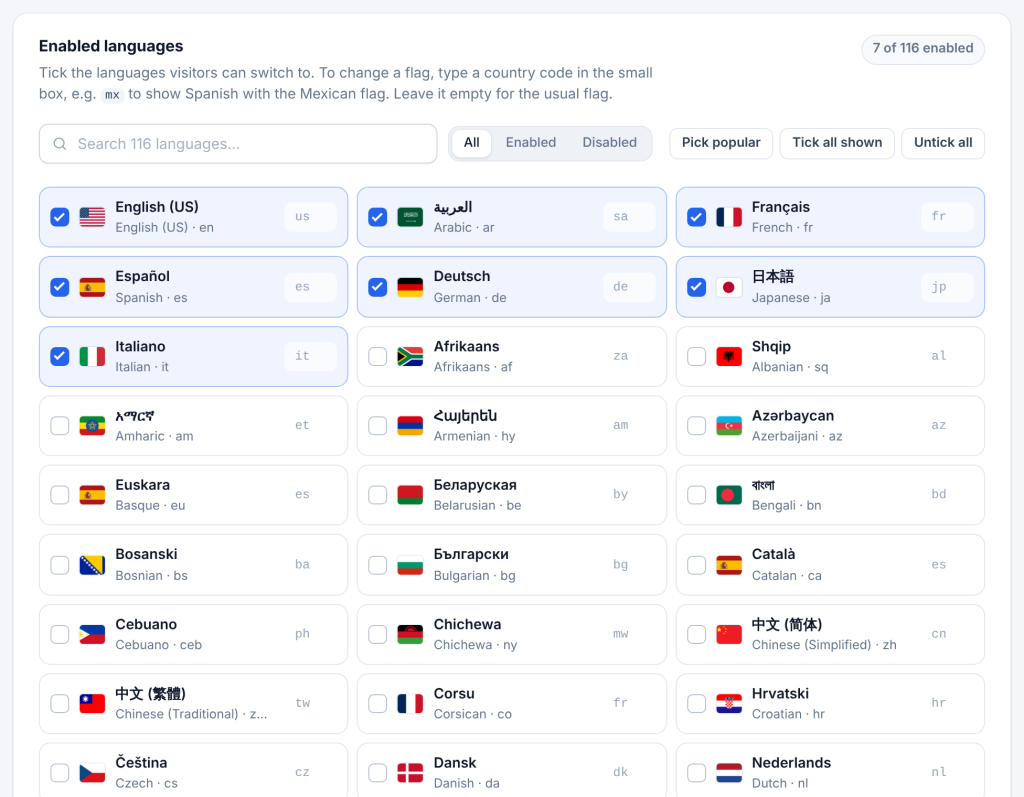
Finding a language. Type in the search box. It matches the language’s own name (Deutsch), its English name (German) and its code (de). The counter at the top right shows how many languages are on.
Filter. Click Enabled to see only the languages that are on, or Disabled to see the rest. All shows everything.
Quick buttons:
| Button | What it does |
|---|---|
| Pick popular | Replaces your selection with 20 widely used languages: English, Arabic, French, German, Spanish, Italian, Portuguese, Portuguese (Brazil), Russian, Chinese (Simplified and Traditional), Japanese, Korean, Hindi, Turkish, Dutch, Polish, Swedish, Hebrew and Persian |
| Tick all shown | Ticks every language in the list as it is filtered right now. Search “spanish” first, then click it to tick every Spanish variant |
| Untick all | Unticks every language |
Using a translation plugin? Tick exactly the languages you set up in that plugin. The switcher only shows languages that are ticked here, so a language you forget to tick is missing from the switcher, and a language ticked here but missing in your translation plugin leads visitors to a page that does not exist.
Order in the switcher. Languages appear in the switcher in the order they are listed at the top of this card: the languages you already had, then newly ticked languages after them.
At least one language must stay on. If you save with every language unticked, the plugin keeps your previous languages and shows a warning, so your switcher never ends up empty.