The language window at a glance
The language window (called the picker or modal in the settings) opens when a visitor clicks a switcher button. It shows:
- A heading, for example Select your language, written in the language of the page.
- A search box (when you have 6 or more languages).
- “Recently used” languages at the top (optional).
- A card for every language with its flag and name. The current language is highlighted with a check mark.
- A close button (×).
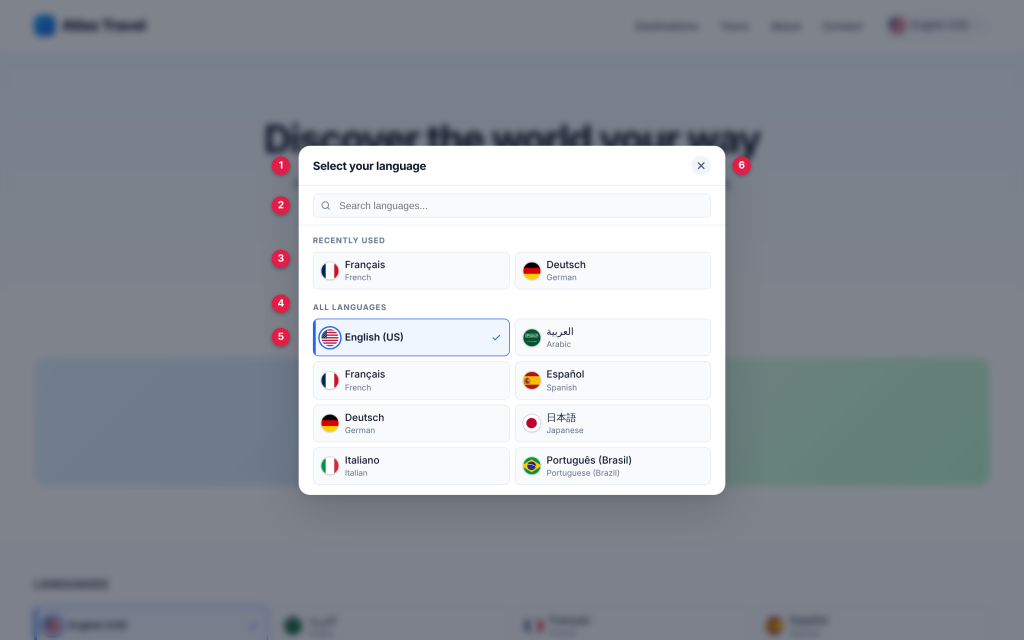
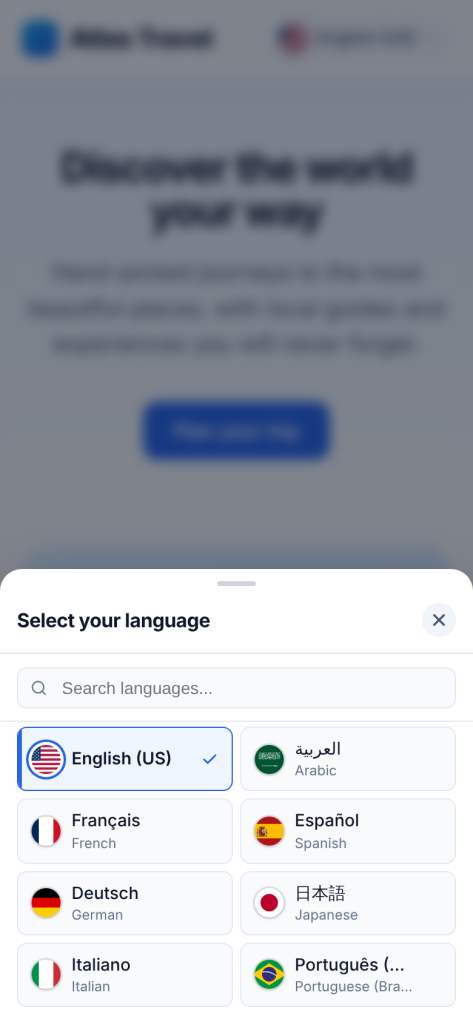
How visitors use it:
- Click or tap a language to go to the same page in that language.
- Click the current language, the ×, or outside the window to close it. Escape closes it too.
- With a keyboard, Tab moves through the window and stays inside it while it is open. The arrow keys move between language cards. Focus goes back to the button when the window closes.
- The page behind does not scroll while the window is open.
The buttons and messages in the window (Close, Search languages…, No languages found, Recently used, All languages, Change language) are built in for 43 languages and follow the language of the page. Other languages show them in English; developers can translate them with the cls_pro_ui_strings filter.