Changing font sizes
Go to Settings → Language Switcher → Typography. Every box is empty by default, which keeps the built-in size shown in grey. Type a size only where you want something different. The Aa next to each box previews the size.
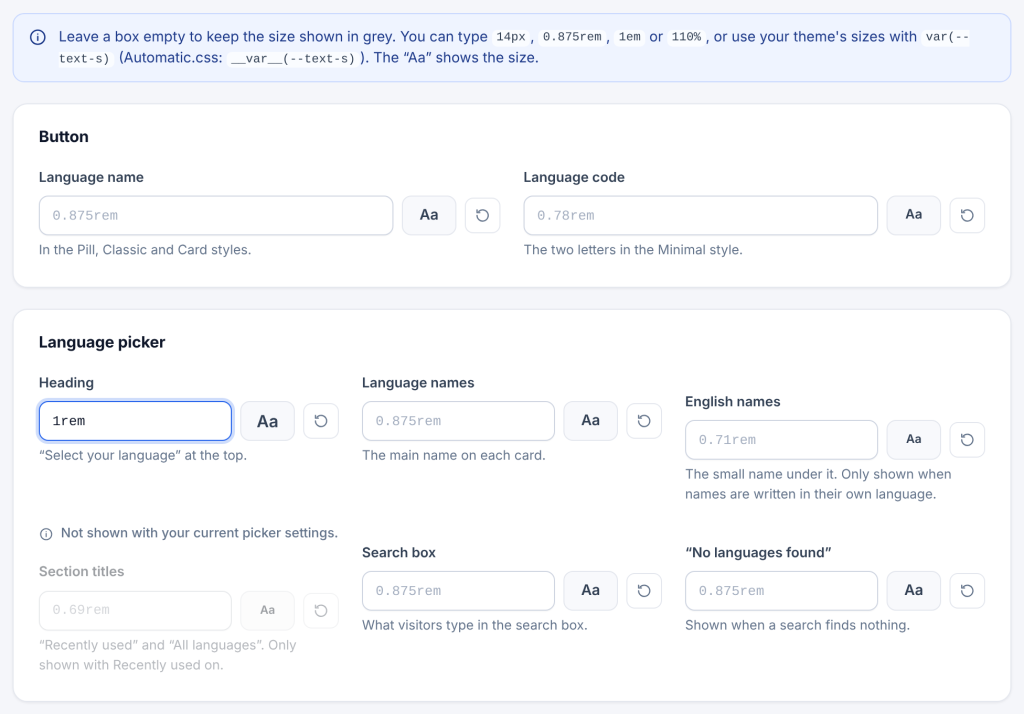
| Setting | Built-in size | What it changes |
|---|---|---|
| Button → Language name | 0.875rem |
The name in the Pill, Classic and Card styles |
| Button → Language code | 0.78rem |
The code in the Minimal style |
| Language picker → Heading | 1rem |
The heading at the top of the window |
| Language picker → Language names | 0.875rem |
The main name on each card |
| Language picker → English names | 0.71rem |
The small English name under it (only with names in their own language) |
| Language picker → Section titles | 0.69rem |
“Recently used” and “All languages” (only with Recently used on) |
| Language picker → Search box | 0.875rem |
What visitors type in the search box |
| Language picker → “No languages found” | 0.875rem |
The message when a search finds nothing |
Settings that do not apply to your current setup (for example Search box with search turned off) are dimmed.
What you can type:
- Sizes with a unit:
14px,0.875rem,1em,110%, alsovw,vh,ch,pt. - Your theme’s sizes:
var(--wp--preset--font-size--small),var(--text-s). - Automatic.css:
__var__(--text-s). - Keywords:
small,medium,large,smaller,largerand the other CSS size keywords. A number without a unit, such as 14, is saved as 14px.
Note
Use rem or your theme’s variables so the switcher grows with the visitor’s browser text size.