Adding the switcher in a block theme
Block themes (like Twenty Twenty-Five) edit the header in Appearance → Editor. You have two options.
Option 1: the Language Switcher Trigger block (recommended).
- Go to Appearance → Editor → Patterns → Header (or open a template and click the header).
- Click the + inserter and search for Language.
- Add Language Switcher Trigger where you want the button, for example next to the Navigation block.
- In the block settings on the right, pick a Button style and turn Show chevron arrow on or off. Leave the style on Use global default to follow the Trigger tab.
- Click Save.
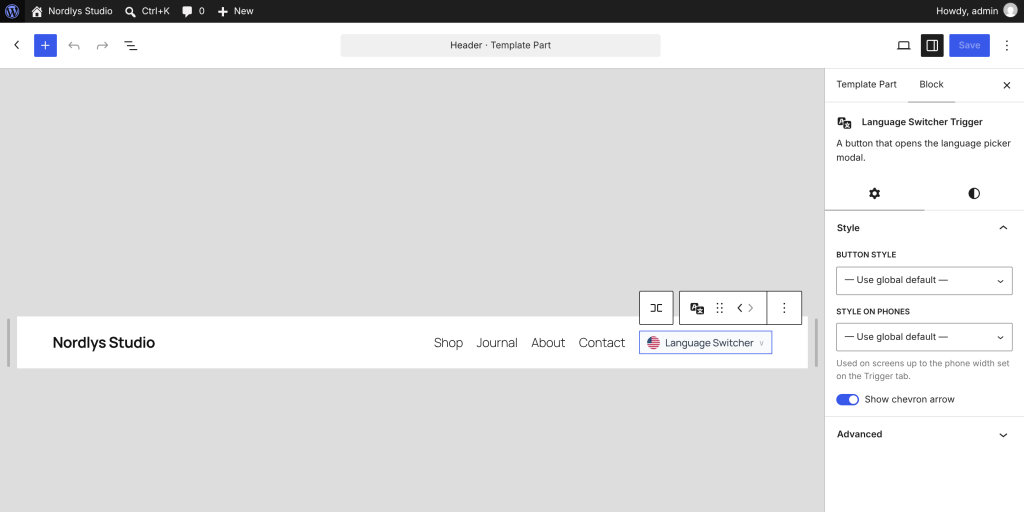
The block supports alignment (left, center, right) and margin and padding from the block toolbar and sidebar.
Style on phones in the block sidebar picks a different style for screens up to the phone width set on the Trigger tab, the same as the menu item’s Mobile Style.
Option 2: a link in the Navigation block.
- In the Navigation block, add a Custom Link.
- Type
#cls-modalas the URL and any text you like, for example Language. - Save.
Clicking that link opens the language window. Unlike in classic menus, the link keeps your text and your theme’s link style; it is not turned into the switcher button. Use option 1 if you want the flag button.
A #cls-modal link works anywhere: in a Button block, a paragraph, or custom HTML. Any link to #cls-modal opens the language window.